Your library is there, but it says “Nothing here” or shows only some of your films. Jellyfin found the folder and skipped what is inside it. These are the causes, most likely first.
Updated 23 October 2026.
What it looks like
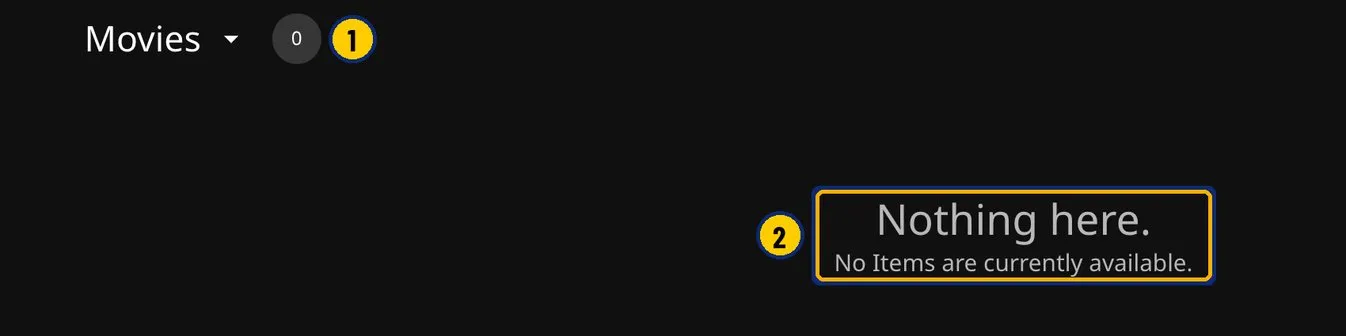
- The library holds 0 films.
- Jellyfin says “Nothing here.” We made this on purpose on our test server: the film file had lost its .mp4 extension, so Jellyfin skipped it.
1. Give the first scan a few minutes
A new library can look empty while Jellyfin runs its first scan and fetches posters. Wait a few minutes before you change anything.
2. Check the file extension
Jellyfin skips files without a video extension. Turn extensions on so you can see them: in File Explorer on Windows 11, choose View > Show > File name extensions. On Windows 10, open the View tab and tick File name extensions. Each film should end in .mp4, .mkv or similar.
Renaming .mkv to .mp4 doesn’t convert a film; it only confuses the player. If a file has the wrong extension, put back the one it really has. Library Check reads each file’s first bytes and tells you.
3. Check the library settings
Make sure the library’s content type is Movies, and that its folder is the one that holds your film folders, such as C:\Media\Movies. Each film goes in its own folder named with its title and year: see How to name movie files.
4. Check for online-only OneDrive files
If your films are in OneDrive, some may be stored online only, shown with a cloud icon. Jellyfin can’t read those. Right-click the folder and choose Always keep on this device, or keep your films outside OneDrive.
5. If you installed Jellyfin as a Windows service
A Windows service runs under a different account, so it may not be able to see folders in your user profile or external and network drives. Reinstall Jellyfin the ordinary way, without the service option.
Then rescan
Rescan the library after each fix, so you know which one worked. Emby and Plex skip files for the same reasons, and the same checks apply.