“Playback error”, or “This client isn’t compatible with the media and the server isn’t sending a compatible media format”, means the device can’t play the file’s format and the server couldn’t convert it.
Updated 23 October 2026.
Find the broken link
- Play the file directly on the server PC. If it fails there, the file is damaged or incomplete. Copy it again from the original; no server can fix a broken file.
- Try another film. If the others play, the problem is this file’s format.
- Try the TV’s own Jellyfin app instead of a web browser. Many TVs play formats that browsers can’t.
Change one thing at a time and retest with the same film, so you know which change fixed it.
What’s inside the file
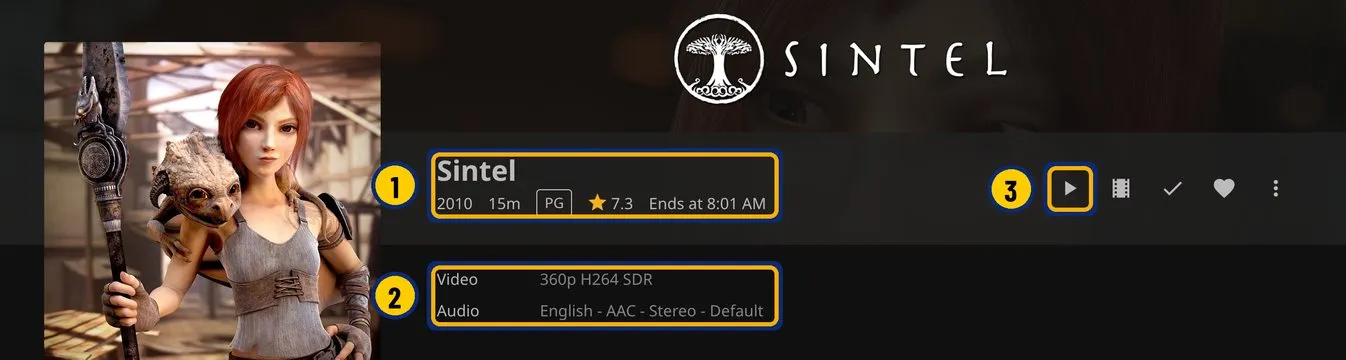
- Check the film’s title and year.
- The Video and Audio lines show what is inside the file.
- Choose Play to test it.
- H.264 video with AAC or MP3 sound plays directly almost everywhere.
- HEVC (H.265), 10-bit video and AV1 often need converting in web browsers and on older devices.
- AC3 and DTS sound often need converting for browsers.
- Picture-based subtitles from a disc have to be burned into the picture, so the server converts the whole video. Text subtitles (.srt) don’t need that.
Converting as it plays takes a lot of computing power, so a slow PC may stutter or give up. A file’s extension doesn’t tell you which formats are inside it: an .mkv can hold any of these.
Library Check reads each film’s formats with the ffprobe tool that Jellyfin and Emby install, and says which ones will need converting.