Jellyfin is free software that turns a Windows PC into your own movie server. Install it, point it at a folder of films, and any web browser, phone or TV app on your home network can play them. Here is the whole setup, with pictures from Jellyfin 12.3.
Updated 23 October 2026.
Before you start
- A Windows PC that can stay on while you watch.
- Three films that already play on this PC. Start small; the rest of your collection follows the same path once those work.
- A Movies folder with each film in its own folder, named with its title and year. How to name movie files shows the layout.
1. Install Jellyfin
- Go to jellyfin.org/downloads/server, choose Windows and Stable, and download the installer, which ends in .exe.
- Run it and accept the defaults. If it offers to install Jellyfin as a Windows service, leave that off. Jellyfin’s own guide does not recommend it, and a service may not be able to see your user folders or external drives.
- Open http://localhost:8096 in a browser on the same PC. Jellyfin’s welcome page appears.
If Windows asks whether to let Jellyfin through its firewall, tick Private networks and choose Allow access. Your TV needs this to find the server.
2. Name the server and make your account
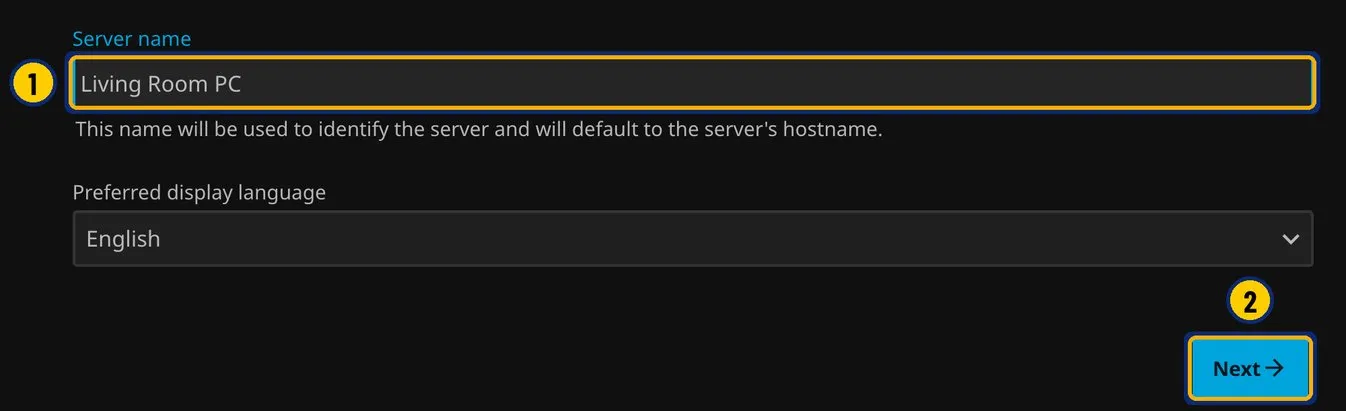
- Type a server name you will recognize, such as Living Room PC. Your apps show this name.
- Choose Next.
Next, choose a username and a strong password. The account lives on your own PC and nobody else holds a copy, so save the password in your password manager.
3. Add your Movies library
On the next page, choose Add Media Library. This form opens.
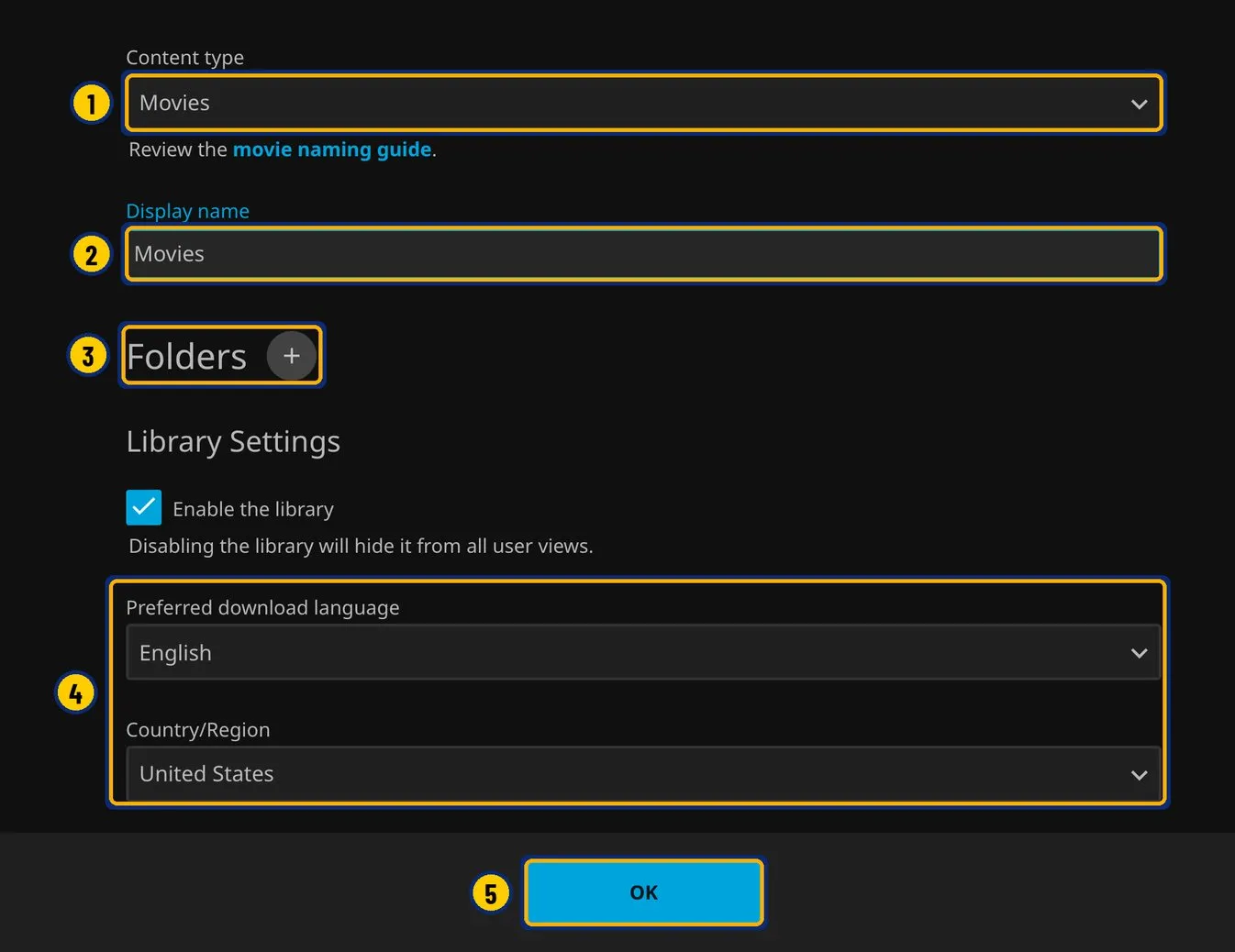
- Set Content type to Movies.
- Name the library Movies.
- Choose the + next to Folders to add your folder.
- Choose the language for titles and descriptions, and the country whose age ratings you want.
- Choose OK once your folder is listed.

- Type the path of the folder that holds your film folders, such as C:\Media\Movies, or browse to it. Choose OK, then OK on the library form.
4. Keep the server inside your home
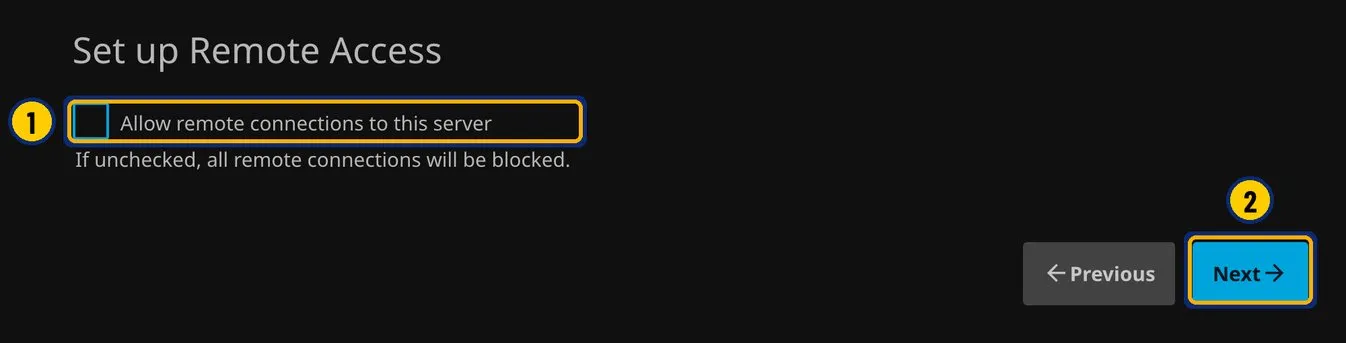
- Untick Allow remote connections; it starts ticked. This PC and your home network can still reach the server. Only connections from outside your home are blocked.
- Choose Next, then Finish, and sign in with the account you just made.
Watching away from home is a separate project, with its own account, security and bandwidth questions. Get everything working at home first.
5. Check your films

- Give the first scan a minute. All three films should show the right title and year. If a year is wrong, Jellyfin matched a different film: see Jellyfin matched the wrong movie.
Open a film, press Play, and drag to the middle. If it plays with sound in the browser, the server works. If your TV or phone can’t find it, see Jellyfin server not found.
These pictures come from Jellyfin 12.3 on our test computer, a Mac, taken on 23 October 2026. Jellyfin’s setup pages are web pages served by Jellyfin itself, so the steps are the same on Windows, with two differences to expect: folder paths look like C:\Media\Movies, and Windows may ask whether to let Jellyfin through its firewall.